![engin_spark_logo_800x272.png]](https://support.engin.co/hs-fs/hubfs/Logos/engin_spark_logo_800x272.png?height=40&name=engin_spark_logo_800x272.png)
Step-by-Step Guide
- From within the job posting, select a candidate's profile.
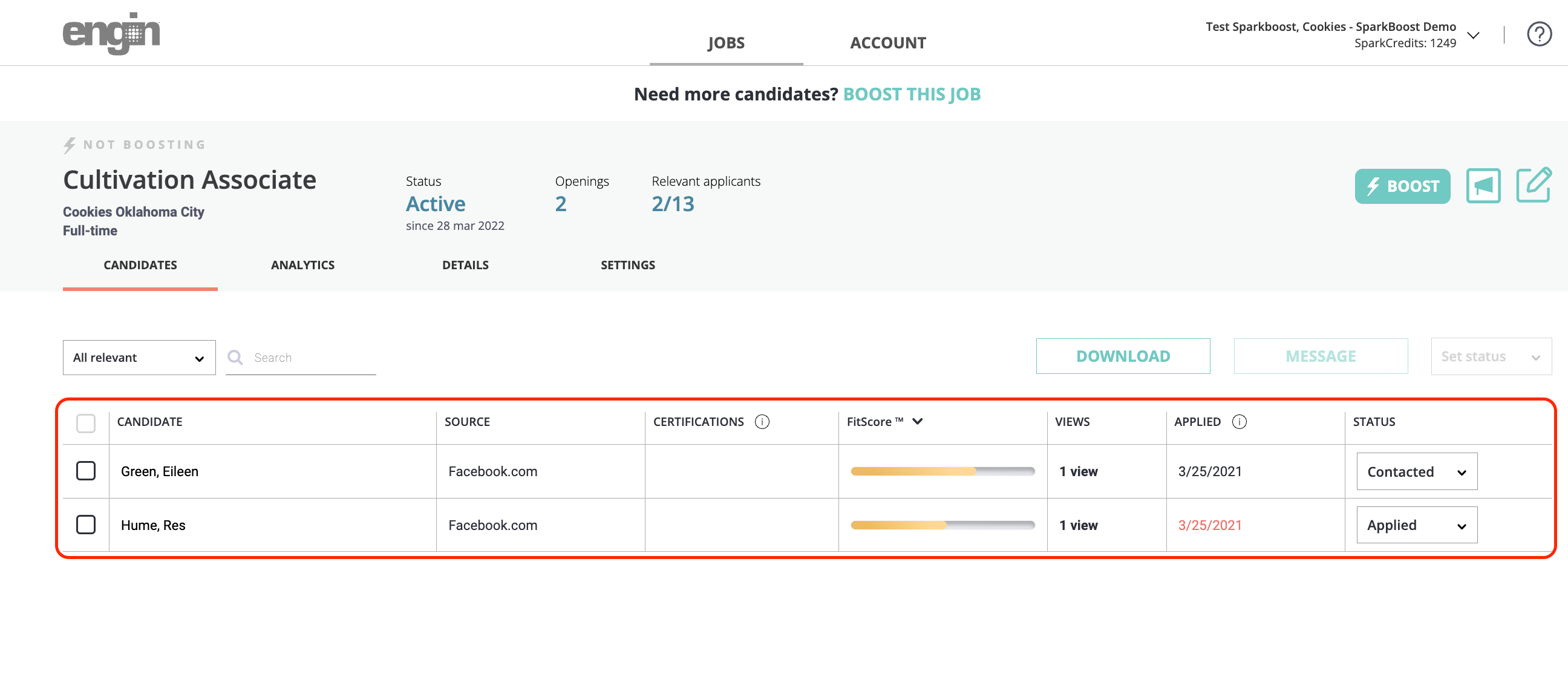
- At the top of the screen, click the "Resume" tab.
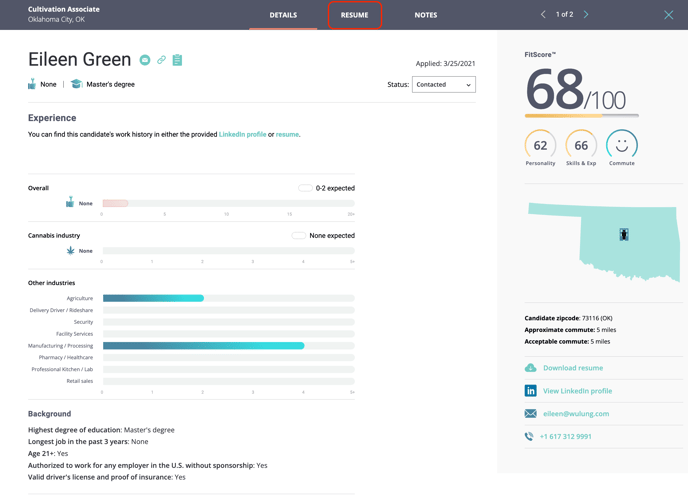
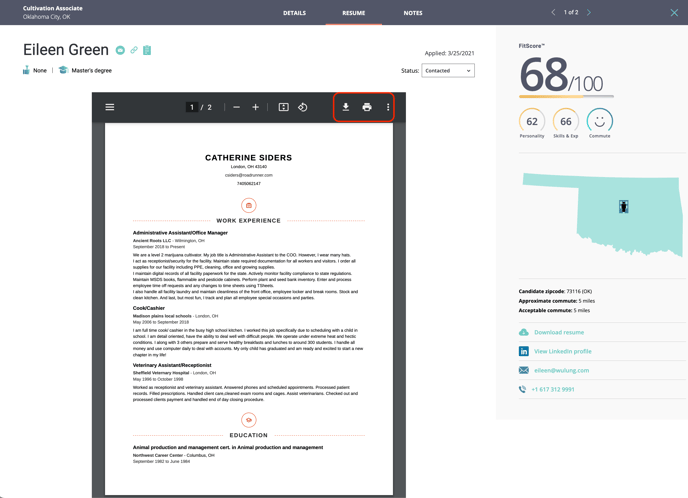
- The module will instantly load a preview of the candidate's resume for you to review. Additionally, you can download a .pdf version of the resume directly to your device for future reference, to conveniently share internally, or print in preparation for an interview by clicking on the respective buttons in the upper, right-hand corner of the window.
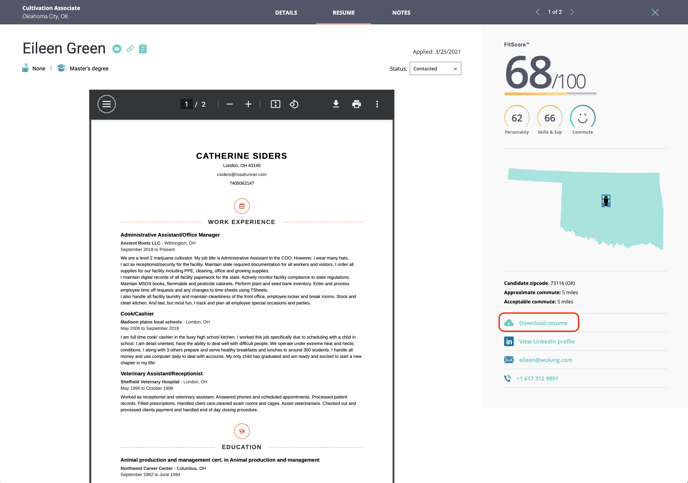
- You may also download a resume by navigating to the right-hand side of the screen and clicking on the "Download resume" button just below the candidate's FitScore summary.
If you have any questions or need further assistance with downloading or previewing resumes, our customer success team is here to help! Feel free to send us an email using: customersuccess@engin.co